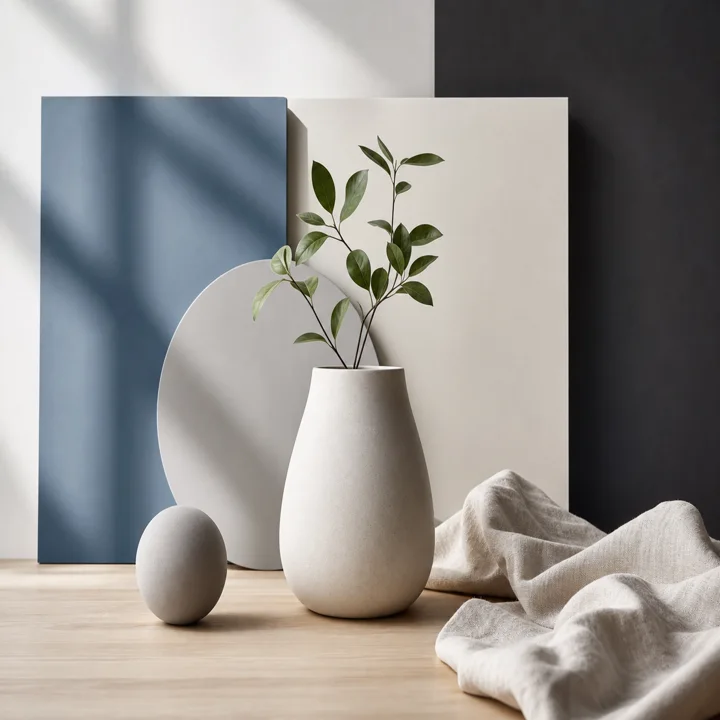
Square
Use for profile images, product cards, thumbnails, and simple listing boxes.
Browser image utility
Use this free image stretcher online to change width or height, preview the stretch, and download a JPG, PNG, or WebP. No signup, no watermark, no AI background generation.
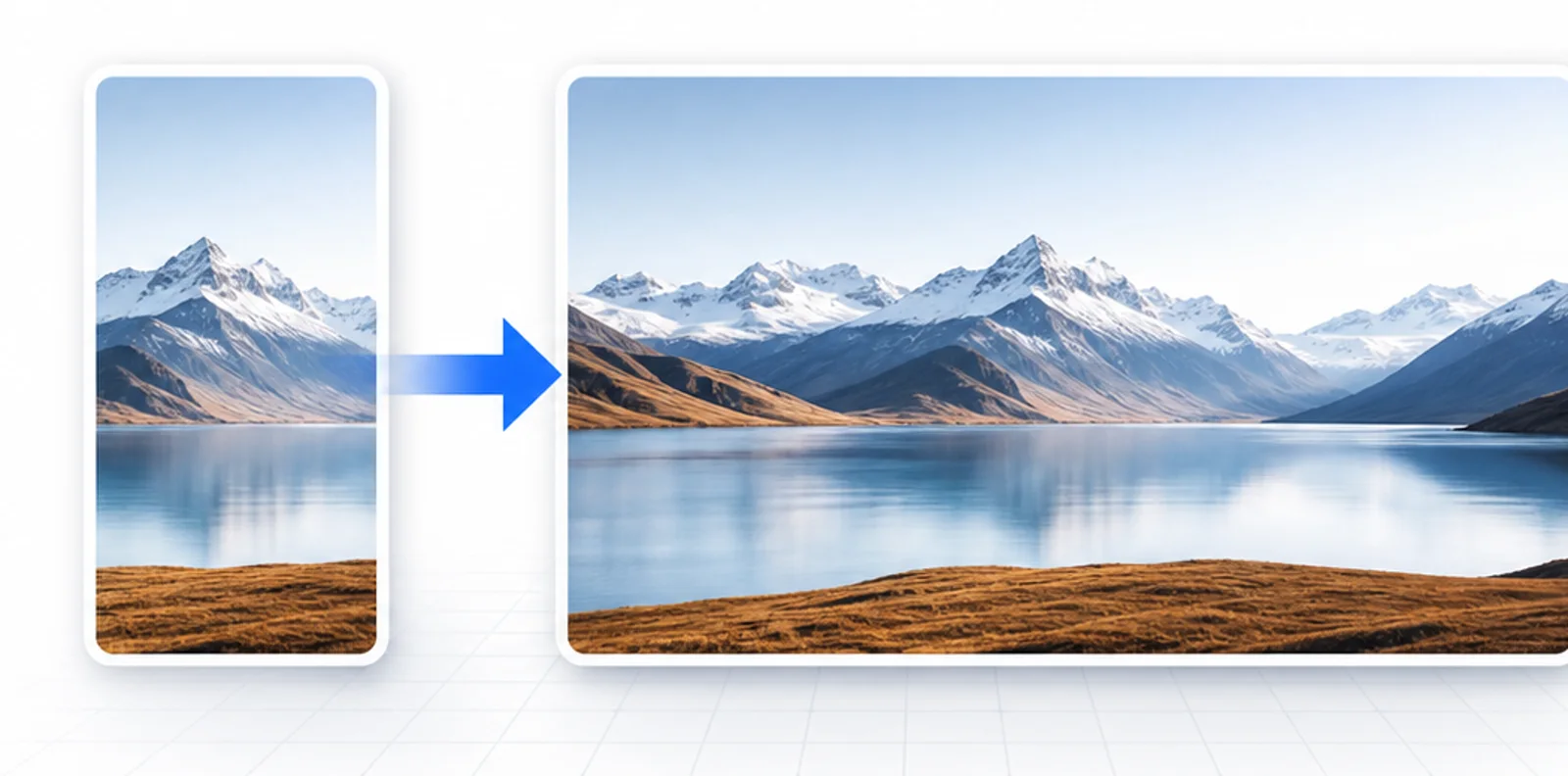
The page makes the change visible: check the original frame against the stretched output before you download. It is useful when a photo is close to the right shape but the frame needs a small horizontal or vertical adjustment.
Start with a preset when you know the shape, or enter exact pixel values when a platform asks for a fixed frame.
Use for profile images, product cards, thumbnails, and simple listing boxes.
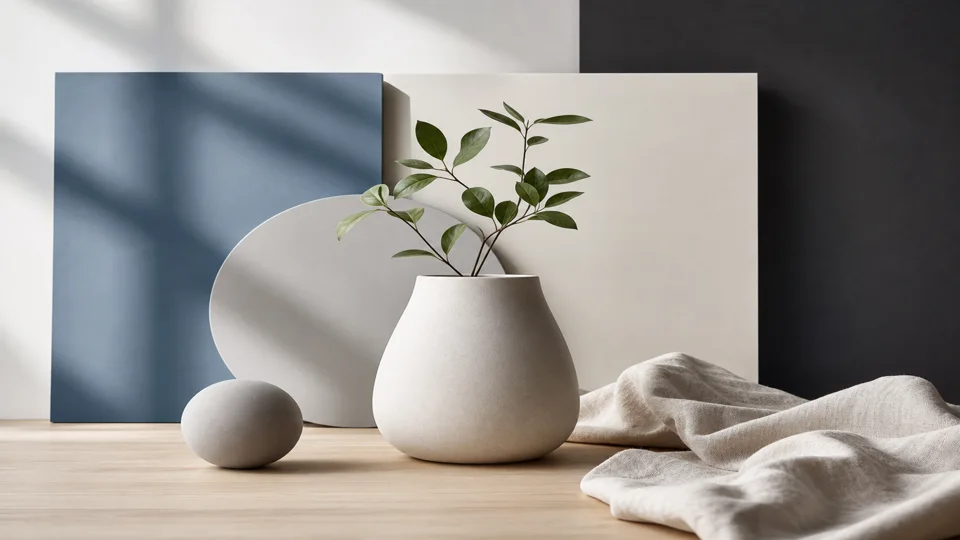
Make a photo wider for slides, video thumbnails, landscape banners, and desktop previews.
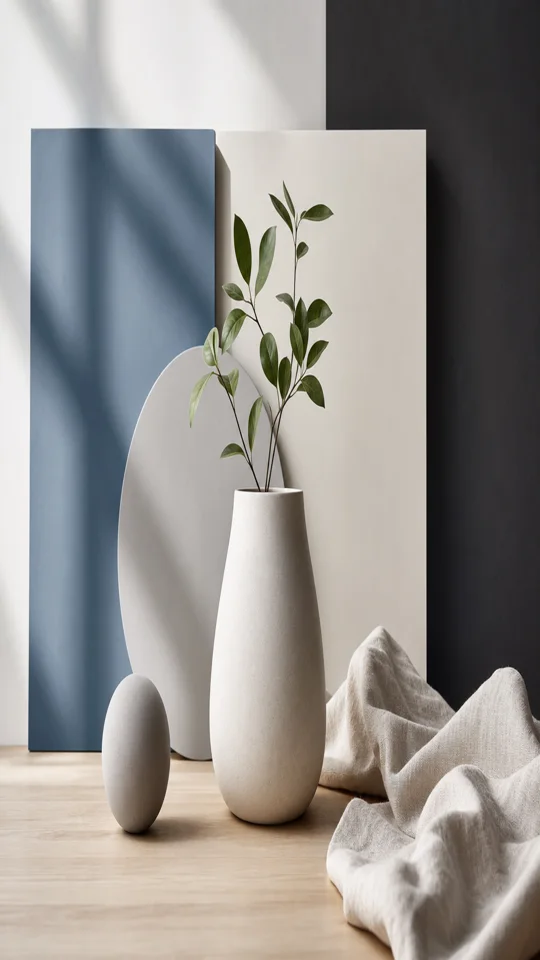
Make a photo taller for vertical posts, phone wallpapers, and story-style layouts.
Fit feed posts and taller listing images without cutting off the top or bottom.
Use Image Stretcher when an image is almost the right shape but needs more width, more height, or a different frame.
Stretch horizontally when you need a wider banner, slide image, thumbnail background, or header. Keep the height stable, increase the width, and use the preview to make sure important objects still look natural.
Stretch vertically when you need a taller story, poster, wallpaper, or portrait frame. Keep the width stable, increase the height, and check faces, text, and product edges before saving.
Turn on resize mode when you want proportional scaling instead of visible stretching. Resize keeps the original shape, while stretch mode lets width and height move independently.
A good image stretcher should help you pick dimensions quickly without guessing. Start from the frame you need, then decide whether the image should become wider, taller, or simply smaller at the same ratio.
Choose 1:1 for square posts, 16:9 for widescreen thumbnails, 9:16 for stories, or 4:5 for portrait feeds. The preset keeps one edge of the original photo and adjusts the other edge to match the target ratio.
Use custom pixel values when a template, marketplace, slide deck, or CMS asks for a fixed size. Enter the required width and height, preview the stretched result, and switch to resize mode if the distortion is too strong.
Small changes usually look cleaner than extreme stretching. For portraits, logos, screenshots, and text-heavy images, compare the output carefully because straight lines, faces, and letters make distortion easier to notice.
Cropping removes parts of an image. Stretching keeps the full image visible while changing the shape. Preview the result before downloading so you can decide whether the stretch looks acceptable.
Keep a chart, screenshot, or illustration visible inside a presentation frame. This works best for backgrounds, abstract graphics, and simple product shots where a small shape change is acceptable.
Match a required image box when the full product must stay visible. If cropping would remove an edge, label, or handle, stretching can preserve the whole subject while fitting the requested frame.
Make a background wider for a simple header, thumbnail, or mockup. Use the before-and-after preview as a quick check before adding the image to a website, email, or social graphic.
An image stretcher is best for fast layout fixes, not for rebuilding a scene. Use it when the full photo should stay visible and the output only needs to fit a different shape.
Try stretching backgrounds, fabric, sky, product tables, flat lays, and simple illustrations. These images often tolerate a moderate width or height change because there are fewer precise facial features or straight text lines.
Be careful with portraits, brand marks, UI screenshots, documents, and anything with readable type. If the output looks stretched, use resize mode, choose a closer ratio, or crop manually in another editor.
The free image stretcher online workflow is simple: upload a local file, set the target frame, compare the preview, pick PNG, JPG, or WebP, and download the finished image without creating an account.
These tools sound similar, but they change images in different ways. This launch version stretches pixels. It is not an AI extender.
| Tool | What it changes | Best for | Launch scope |
|---|---|---|---|
| Stretcher | Changes width and height independently, which can make the image look wider or taller. | Quick frame fixes, banners, slides, stories, listings. | Included here. |
| Resizer | Scales the image up or down while usually keeping the same proportions. | Making a file smaller or matching a size without distortion. | Available through lock ratio. |
| Cropper | Removes edges to fit a target frame. | Cutting away unused areas or changing composition. | Not the core task. |
| Extender | Creates new surrounding content outside the original image. | Natural-looking background expansion. | Not part of this launch. |
The page processes images with canvas in your browser. Stretching can distort subjects when the new shape is very different from the original, so the preview is the decision point.
Your image is drawn in the browser preview before you save the output file.
This browser-based image stretcher is a free single-page tool with no credits, payment step, or watermark on the downloaded output.
Large changes can distort the image. Use lock ratio for proportional resizing.
Short answers for privacy, quality, file support, and the difference between stretching and extending.
Upload a JPG, PNG, or WebP image, enter a new width or height, preview the stretched result, and download the file when it looks right.
Yes. Increase the width while keeping the height the same, or choose a wider ratio such as 16:9. The preview will show how the image changes before you download it.
Yes. Increase the height while keeping the width the same, or choose a taller ratio such as 9:16 or 4:5.
Yes. The page is a free single-page image stretcher with no signup, no watermark, and no credits. Upload a supported image, preview the size change, and download the result from the browser.
Stretching changes the shape of the original pixels, so the image can look distorted when the new size is very different from the original. Use the preview to check the result before downloading.
This prototype uses browser canvas for preview and download. Re-check this privacy line before publishing if any server upload is added later.
An image stretcher changes the shape of the pixels already in your image. An AI image extender creates new content around the image. This launch version is a pixel stretcher, not an AI extender.
Upload an image, choose the width and height you need, preview the result, and download the stretched file.
Upload image